Group Elements
Selection and search sets from property rules, rerun on every model update
Nested selection and search sets generated from property rules, coloured in the model, exported as XML and rerun on the next model.
Manage and Simulate
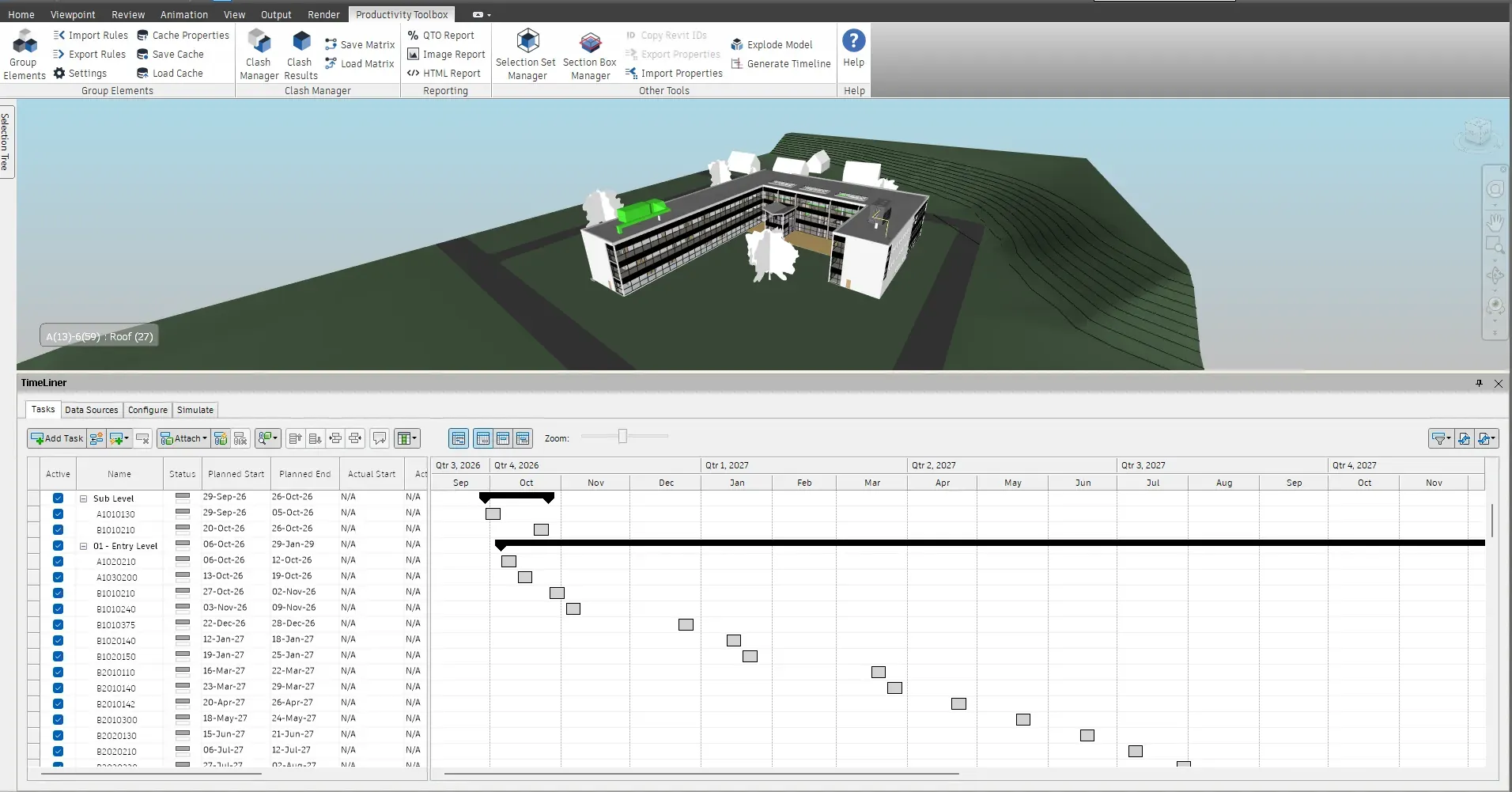
Generate Timeline
Generate Timeline builds the TimeLiner task tree from a selection set folder: one summary task per folder, one task per set, each task attached to its set. A sequence blueprint decides the order, and planned dates run one after another or all at once from a chosen start date.
What it does
Pick a selection set folder and get the matching TimeLiner task tree, ordered by a construction-sequence blueprint, with planned dates laid out from a start date.
How it works
Choose the selection set folder that holds the breakdown. Every folder becomes a summary task and every set a task attached to that set.
Use UniFormat by level or one of your own. Edit shows how the blueprint matches the chosen folder and previews the order.
Set the start date, choose sequential or simultaneous planned dates, skip weekends if needed, and generate. Open TimeLiner to refine.
Blueprints are JSON files. The Edit button opens a blueprint editor that matches the blueprint live against the folder you chose: which depth each dimension binds to, how many values every rank pattern catches with the UniFormat title next to each code, the values still unmatched with a one-click rank selected, the not-built list and the raw JSON, plus a preview of the resulting order.
Recognisers match your own folder naming by grouping rule, regular expression or fixed list, and rank patterns accept wildcards. Saved blueprints are kept per user and listed next to the built-in ones. Import and export move single files between machines. Durations per phase are planned for a later release.
A selection set folder built by Group Elements with a level, UniFormat and category rule is the natural input. Use the Selection Set Manager to check which sets pick up an element before generating the timeline. Refine the dates in TimeLiner afterwards; the tasks are ordinary TimeLiner tasks attached to ordinary sets.
At a glance
Pressing F1 on any of these ribbon buttons opens the help page for that command on this site, which forwards to the section of the user guide that documents it.
Nested selection and search sets generated from property rules, coloured in the model, exported as XML and rerun on the next model.
Manage and Simulate
Select elements in the model and see every selection or search set that contains them, nested folders included.
Manage and Simulate
A pane that lists the Revit rooms under their levels. One click sections the view to that room or level, and checked rows are sectioned together.
Manage and Simulate
30 days, unrestricted. Download it from the Autodesk App Store and run the installer; no administrator rights needed.