Group Elements
Selection and search sets from property rules, rerun on every model update
Nested selection and search sets generated from property rules, coloured in the model, exported as XML and rerun on the next model.
Manage and Simulate
Classifications
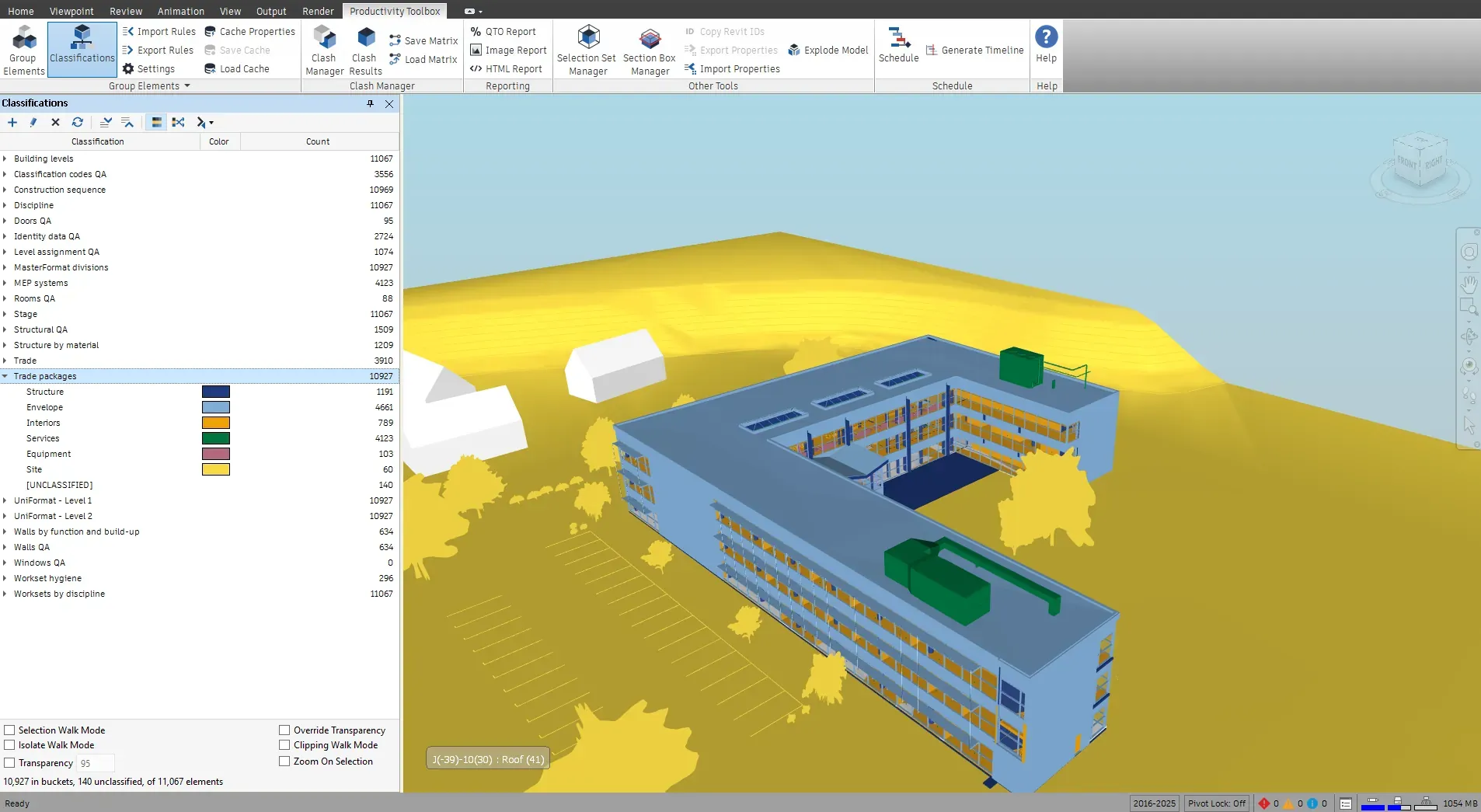
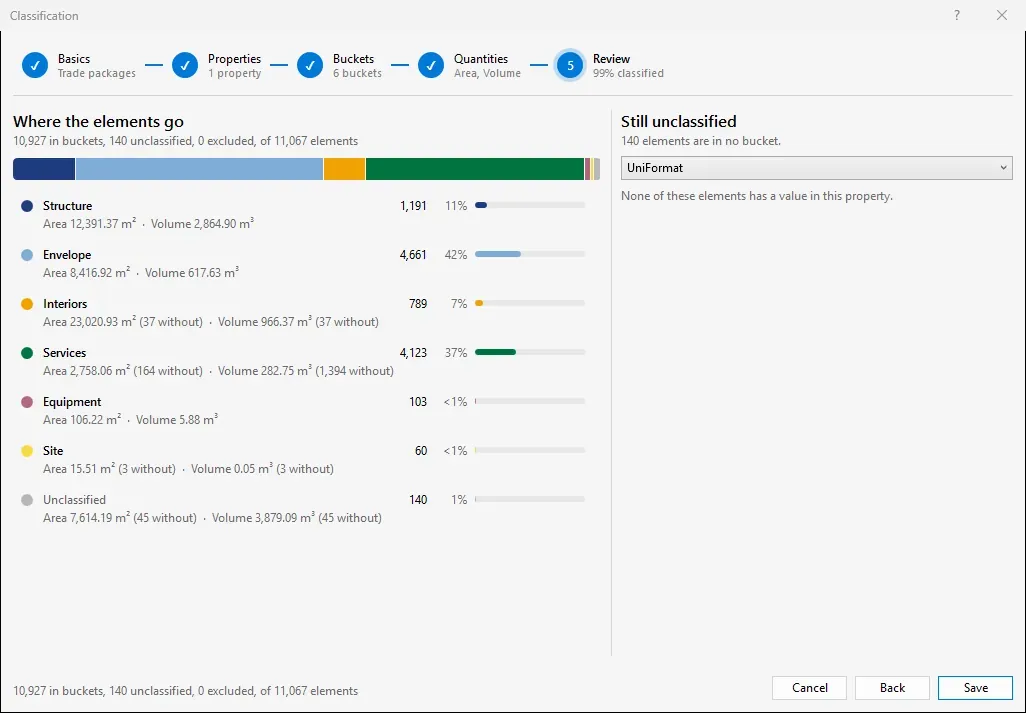
Classifications sorts every element of the model into named buckets by rules you write, in priority order, and keeps the rules so they run again on the next model. Trade packages from UniFormat codes, work packages from names, QA checks for missing parameters: each classification is one tree in the pane, with element counts, quantities, colours in the model and the elements no rule caught under [UNCLASSIFIED].
What it does
Sort every element into named buckets by rules in priority order, see what no rule caught, total quantities per bucket and run the same rules on the next model.
How it works
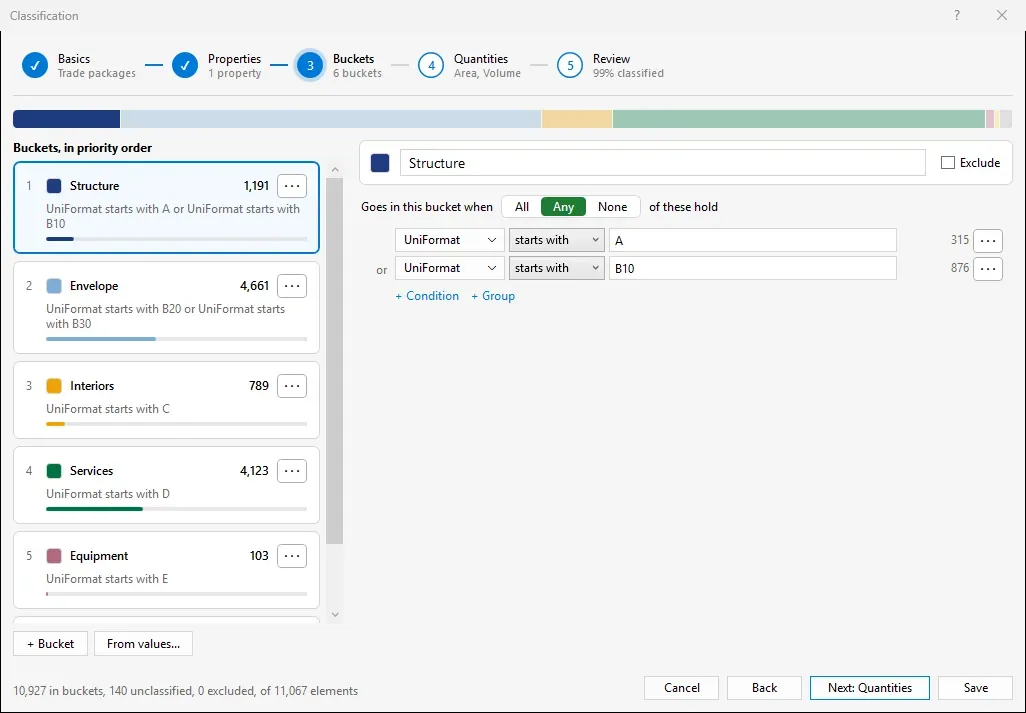
Classify the whole model, the current selection or one selection set, and choose whether an element goes in the first bucket that matches or in every bucket that matches.
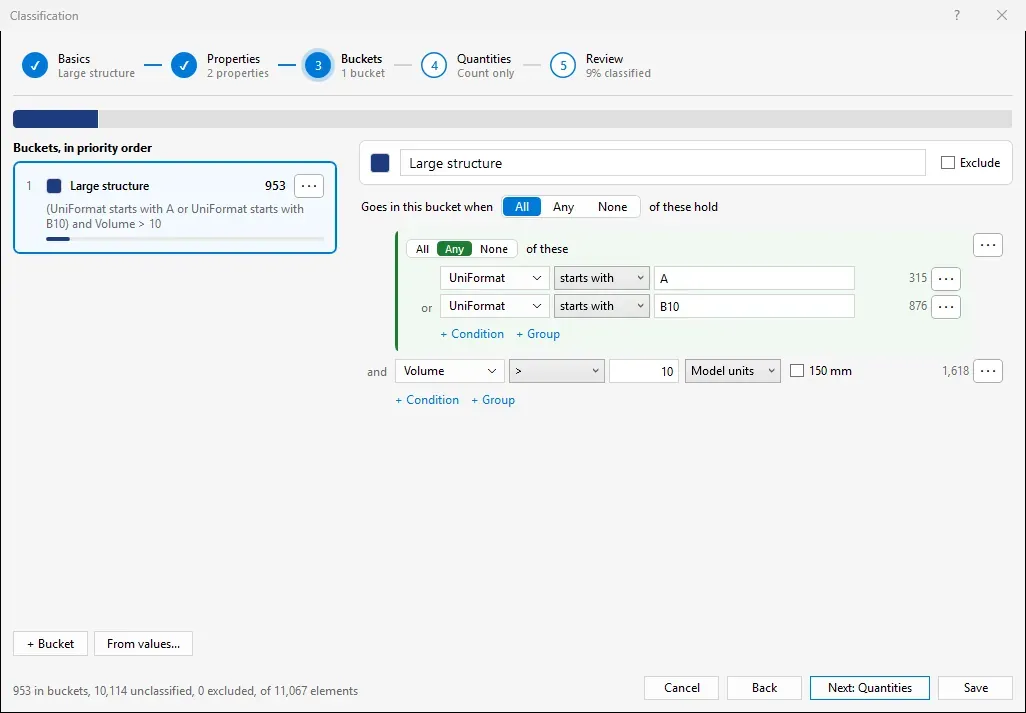
Pick the properties that tell the buckets apart, then add buckets with conditions, or one per value of a property. Live counts show where every element goes.
Rebuild checks the model. Click a classification to colour the model, show the totals, export the take-off to Excel or save the buckets as selection sets.
A classification is a set of rules, not a set of picked elements. When the next coordination model arrives, Rebuild sorts it again in one pass over the model and the counts show at once what changed. A classification made on one project works on any model that carries the same properties, and a colleague who imports the file gets the same buckets.
Rebuild reads only the properties the rules need and can be cancelled from the progress bar. On models without element IDs, such as AVEVA review models, the Element Resolution setting decides which items count as elements, and a condition can read a value from the item above an element.
A grouping in Group Elements builds groups from the values of a property: one group per level, per system, per workset. A classification sorts elements into buckets you name, by rules that can combine several properties, in priority order, and keeps a bucket for what no rule caught. Use a grouping for a breakdown the model already carries. Use a classification for trade packages, cost codes, work packages or model QA, where the buckets are yours and the model has to be mapped onto them.
With every bucket that matches, a classification becomes a checklist: walls without a fire rating, doors without a mark, elements on no level. Isolate Unclassified shows in the model what the rules miss, and a click on a bucket walks its elements with the same walk modes as the Group Elements pane.
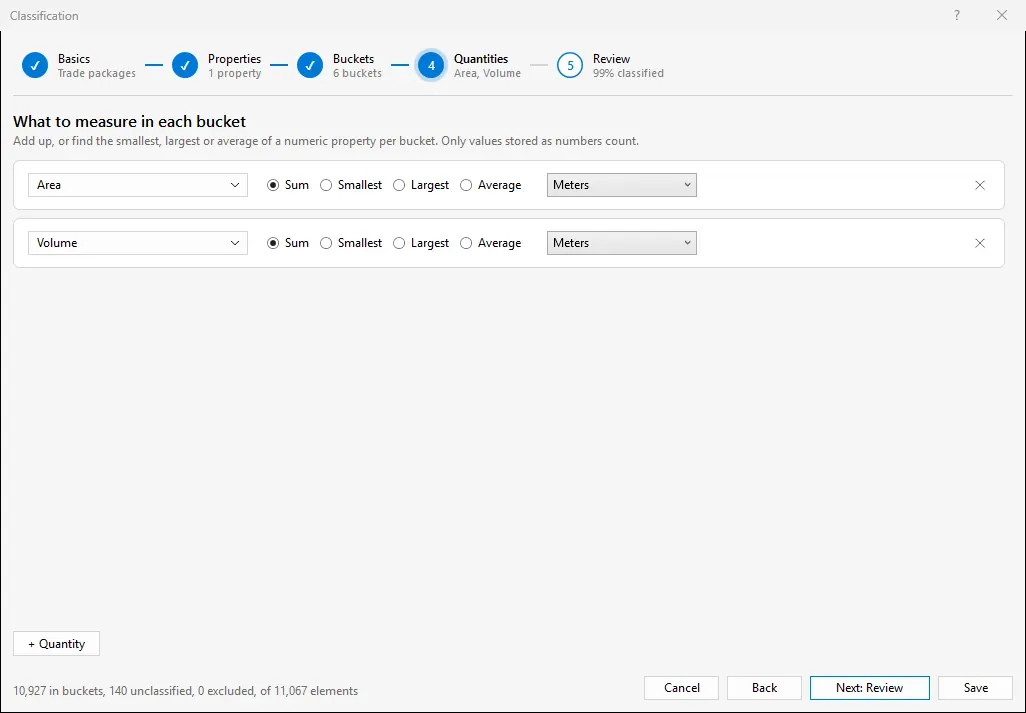
Quantities turn the same buckets into a take-off. Area, volume or length per trade package shows in the pane, and Export Take-off writes one Excel sheet per classification with the element count, each total in its unit and the number of elements that had no value.
Save as Selection Sets writes one set per bucket into a folder named after the classification. Generate Timeline turns that folder into a TimeLiner schedule, and the Schedule pane shows it as a Gantt chart with the critical path, so the packages a classification defines become the tasks of the 4D simulation.
In Navisworks
At a glance
Pressing F1 on any of these ribbon buttons opens the help page for that command on this site, which forwards to the section of the user guide that documents it.
Nested selection and search sets generated from property rules, coloured in the model, exported as XML and rerun on the next model.
Manage and Simulate
Turn a selection set folder into a TimeLiner schedule in four guided steps: construction order from a sequence blueprint, relations and critical path, durations from model quantities, and a Gantt preview before anything is written.
Manage and Simulate
Sum quantities for every group at the deepest level of a grouping and export them to an Excel workbook with a pivot summary, or to CSV.
Manage and Simulate
30 days, unrestricted. Download it from the Autodesk App Store and run the installer; no administrator rights needed.